
Guides
Editor guides
The guides show how you change the text, prices or opening hours on your website yourself.
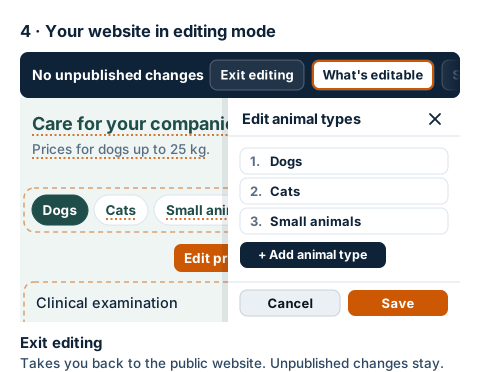
How to start editing your website
You sign in without a password, using a link from an email. Your website then opens as your customers see it, just with the editor bar at the top.
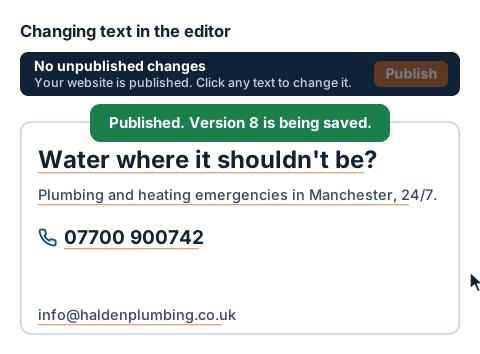
How to change text on your website
You change a heading, a paragraph or a phone number right on the page, as in a word processor. The editor checks phone numbers and email addresses. The public website only changes when you click Publish.
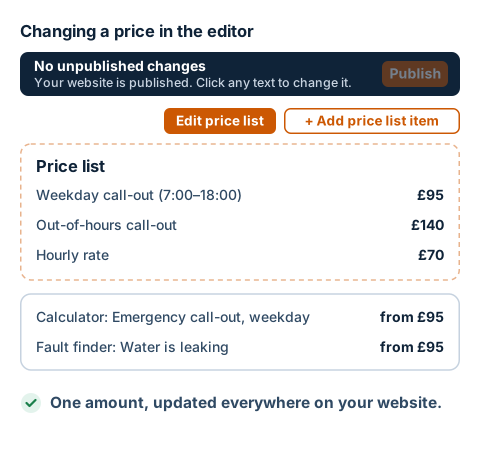
How to change a price
You change a price yourself in the editor, in the Price list window. It's stored in one place, so once you publish, it changes everywhere it appears on your website: in the price list, the calculator and the fault finder.
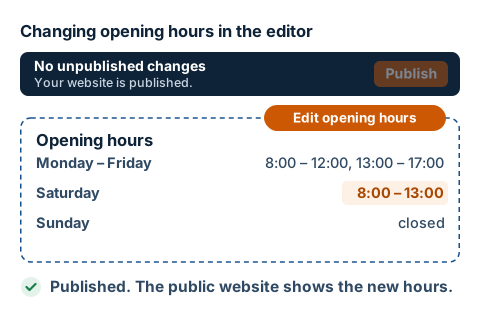
How to change your opening hours
You change your opening hours yourself in the editor, right on the page. Your website uses them to work out whether you're open right now. Once you publish, visitors see them straight away.
How to replace a photo
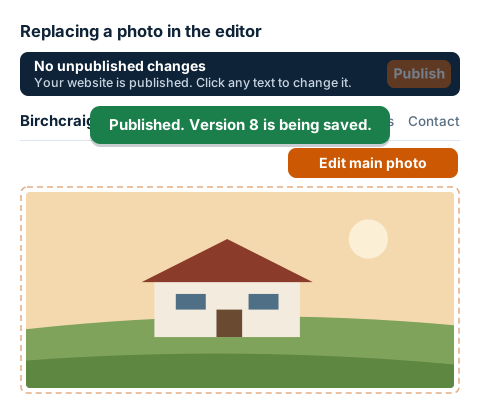
You replace a photo on your website yourself in the editor. You upload a different one from your computer or phone, and the editor makes it smaller by itself. Once you publish, everyone can see it.
How to add, remove or move an item in a list
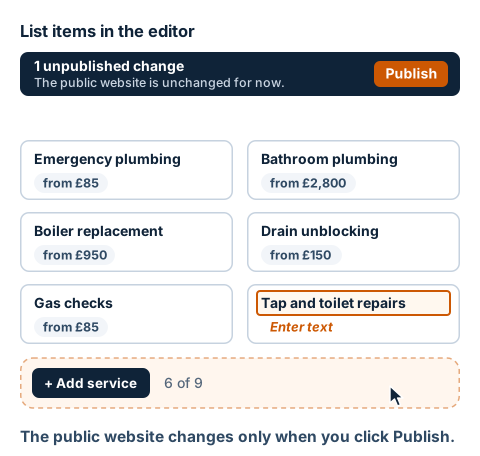
Services, questions, photos and other cards that repeat on your website can be added, removed or rearranged yourself in the editor. The editor always shows how many more items you can add.
How to undo a change that went wrong
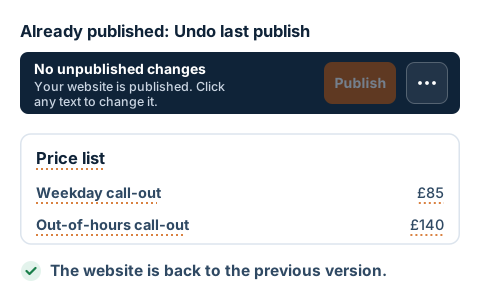
A change you haven't published yet can be discarded. If you've already published it, one button takes your website back to how it was before the last publish.