
Steps
- On slashsite.com, click Client area at the top. Enter the email address your access is registered to and click Send sign-in link.
- You'll receive an email called Sign in to your website. Click the link in it. It's valid for 15 minutes and can only be used once. If the email doesn't arrive, check your spam folder too.
- Answer the question Is this your device? On your own computer or phone, click It's mine, keep me signed in and you'll stay signed in for thirty days. On someone else's, choose Not mine, just this once. You'll be signed out when you close the browser.
- If you look after a whole business, its page opens first. In the Your websites card, click Edit content next to the website. If you only have one website, it opens straight away.
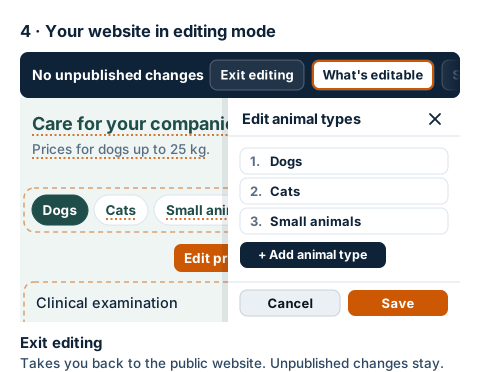
- Your website opens as your customers see it, with a dark bar at the top. The bar says No unpublished changes and holds the editor buttons. On a narrower screen, some of the buttons are tucked under the ⋯ button.
- What's editable adds a dotted underline to everything you can change. It's switched on at the start. Click it again to switch it off. Elements such as a price list or opening hours have their own orange button, for example Edit price list.
- Side panel changes where you edit an element. Instead of a window over the page, a panel opens at the right-hand edge and the page stays visible next to it.
- When you've finished, click Exit editing. You'll return to the public version of your website. Changes you haven't published yet stay saved for next time.