
Steps
- Open your website in editing mode. You sign in without a password, using a link from an email.
- Hover over an item in the list, for example a service, a question or a photo. Three buttons appear above its top right-hand corner: an up arrow, a down arrow and a cross. On a phone, they're always visible, below each item.
- The up arrow (Move up) or the down arrow (Move down) moves the item by one place. The first item can't be moved up and the last one can't be moved down.
- The cross removes the item. Depending on the list, the button is called something like Remove service or Remove question. Your browser asks “Really remove this item (service)? This can't be undone.” Confirm with OK.
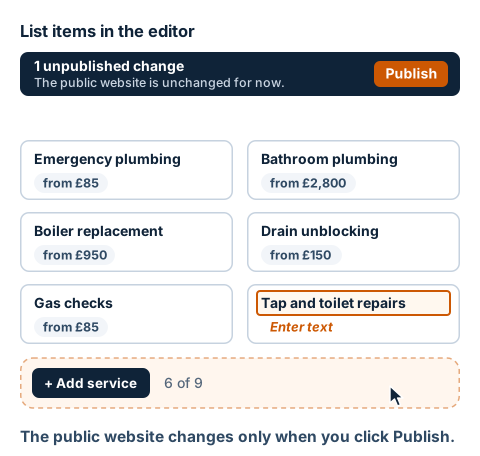
- You add a new item with the button below the list. Depending on your website, it's called something like + Add service or + Add question. The new item appears at the end and its first field is open for typing straight away.
- Fill in every field that says Enter text. The editor won't publish your website with an empty field and shows you what's missing.
- Next to the add button, you can see how many items the list has and how many it can hold, for example 6 of 9. When it's full, the button can't be pressed and the editor tells you why. More items mean a change to the layout. Write to us about that.
- When everything is as it should be, click Publish on the bar at the top. Only then does the public website change.